
Share a topology link
Create a read-only link to your network topology that anyone can open in a browser — no Scanopy account required.
Share links let you give people outside your organization a read-only view of a site's topology. The recipient opens a link in their browser and sees the live topology — they can't sign in, edit anything, or change your data.
For the API equivalent, see the Shares API.
Prerequisites
- A site with a topology to share
- A plan that includes share links — see pricing for which plans include sharing, embedding, and export
Creating a share
- Open the site's topology and click the Share button in the toolbar
- Click Create Share
- Configure the share:
- Name — a label to identify this share
- Views — which perspectives the recipient can see (L2 Physical, L3 Logical, Workloads, Application). The first enabled view is what they land on
- Password (optional) — require a password before the topology loads
- Expiration (optional) — a date after which the link stops working
- Allowed domains (optional) — restrict where the topology can be embedded as an iframe
- Display options — toggle the inspect panel, zoom controls, export button, and minimap for the recipient
- Save — the link is live immediately
Share URLs
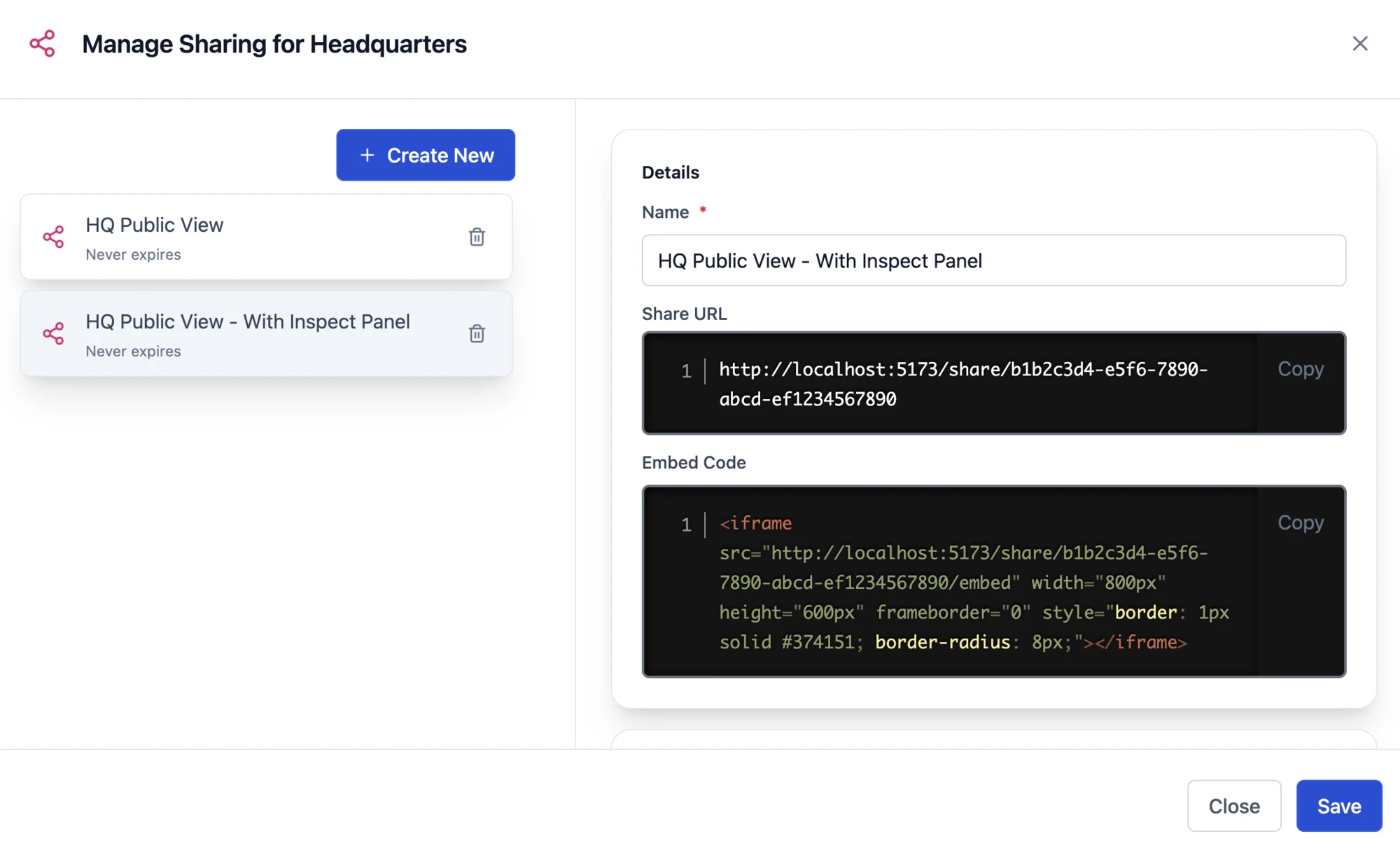
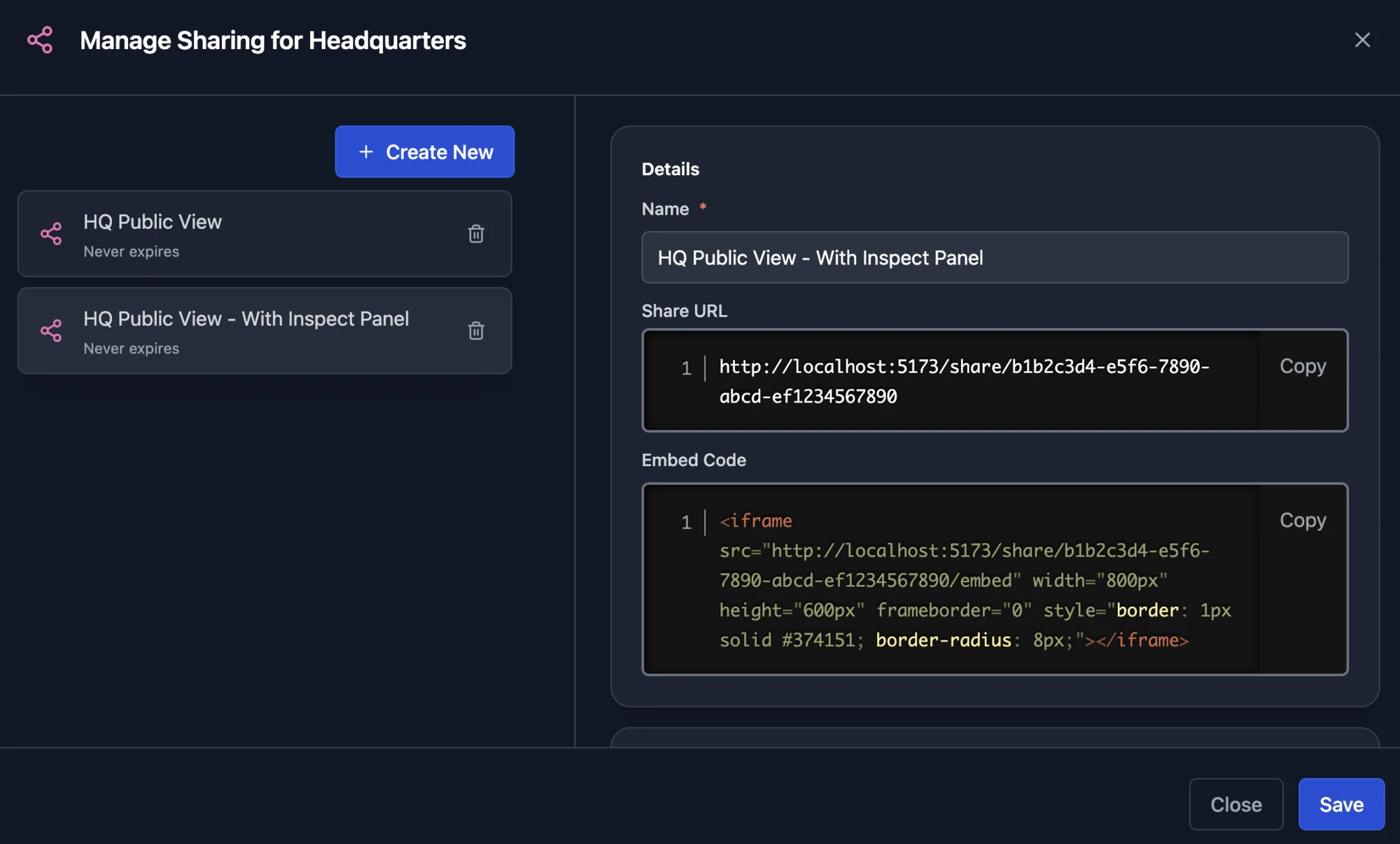
The Share dialog shows each share's link and embed code. A share created through the API has no URL in its response, so build the address from the share's id and your Scanopy address:
- Link:
https://<scanopy-address>/share/<share-id> - Embed:
https://<scanopy-address>/share/<share-id>/embed, loaded in an<iframe>
Add ?theme=light or ?theme=dark to either one to set the theme.
An embed loads only on the hostnames in the share's Allowed domains. With none listed, it loads anywhere. Each entry is a hostname, such as wiki.example.com or *.example.com, not a URL. A share with a password shows its password prompt inside the embed.
What the recipient sees
- A read-only, live view of the site limited to the views you enabled — it reflects current discovery data, not a snapshot
- No editing, tagging, or account access
- Only the controls you enabled (inspect panel, zoom, export, minimap)
- A password prompt first, if you set one
Managing shares
From the same Share dialog you can edit a share's settings, disable it temporarily, or delete it. Disabling or deleting a share takes effect immediately — anyone with the link loses access.
Share links always show the live topology. To preserve a fixed point-in-time view, use a snapshot instead.
Product names and logos are trademarks of their respective owners. See credits.